
Connect your phone or laptop, open the router settings and enter your AFTEL details.
Connect to the router
- Connect Fibre Box LAN 1 to the router’s WAN or Internet port.
- Switch on the router and wait for it to start.
- Have the AFTEL PPPoE username and password from your activation email ready.
Phone or laptop by Wi-Fi
Find the default Wi-Fi name on the back or bottom label. It often starts with ASUS. Select it on your device and enter the printed Wi-Fi password if one is shown.
Laptop by Ethernet
Connect an Ethernet cable from the laptop to any router LAN port. Do not use the router’s WAN or Internet port for the laptop.
Open asusrouter.com. A new or reset router asks you to create a router login. Otherwise, use the current router login or the details printed on the label.
Enter AFTEL settings
- Open asusrouter.com while connected to the router, then sign in.
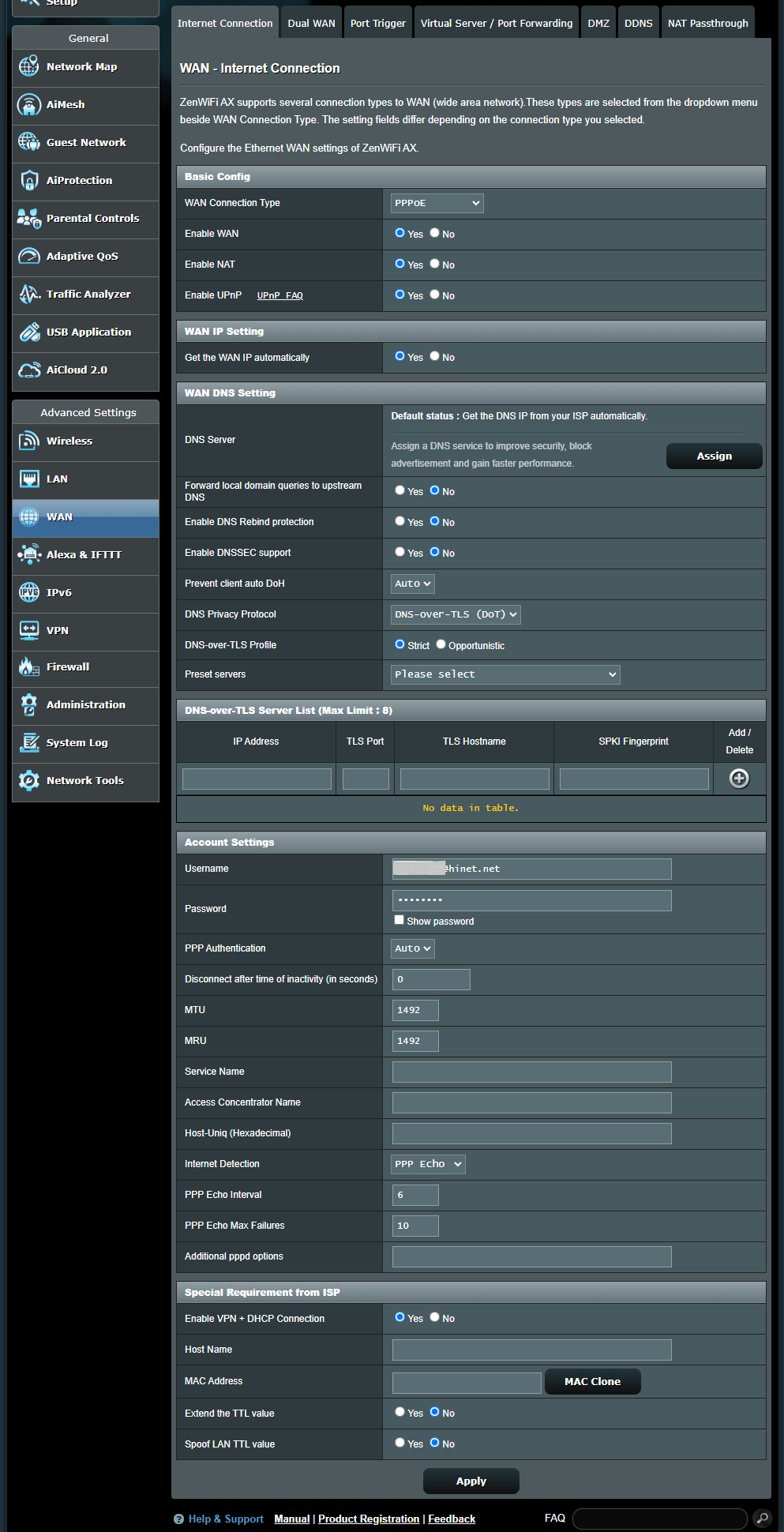
- Go to WAN > Internet Connection.
- Set WAN Connection Type to PPPoE.
- Under Account Settings, enter the AFTEL username and password.
- Under Special Requirement from ISP, set Enable VPN + DHCP Connection to No.
- Leave the remaining fields unchanged and select Apply.
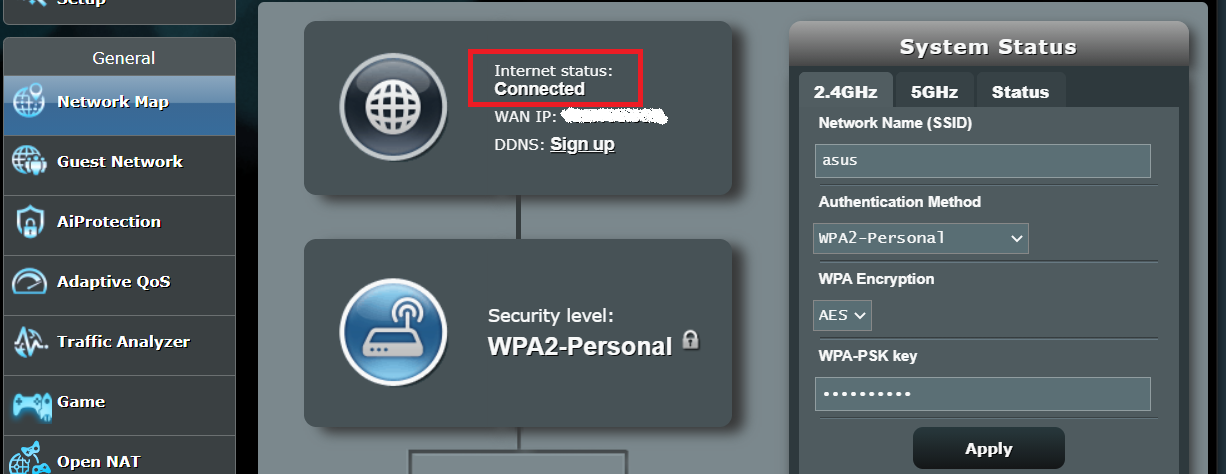
Check the connection
Reset the router
- Keep the router switched on. Press and hold the Reset button for 5–10 seconds.
- Release the button when the Power LED starts flashing.
- Wait for the router lights to turn on again. Do not switch off the router while it resets.
- Reconnect using the Wi-Fi name on its label, open asusrouter.com and create a new router login.
After the reset, return to Enter AFTEL settings and enter your PPPoE username and password.
Checked against the ASUS router WAN setup guide, internet setup instructions, first-connection instructions and factory-reset instructions.