
Connect your phone or laptop, open the router settings and enter your AFTEL details.
Connect to the router
- Connect Fibre Box LAN 1 to the router’s WAN or Internet port.
- Switch on the router and wait for it to start.
- Have the AFTEL PPPoE username and password from your activation email ready.
Phone or laptop by Wi-Fi
Find the WiFi Network Name (SSID) and Network Key (Password) on the back or bottom label. Select that Wi-Fi name on your device and enter the printed password.
Laptop by Ethernet
Connect an Ethernet cable from the laptop to any router LAN port. Do not use the router’s WAN or Internet port for the laptop.
Open routerlogin.net. Use admin as the username and the router admin password. After a factory reset, the default password is password.
These are separate passwords. The router password opens its settings. Your AFTEL PPPoE details connect the router to the internet.
Enter AFTEL settings
- Open routerlogin.net while connected to the router, then sign in with the router admin password.
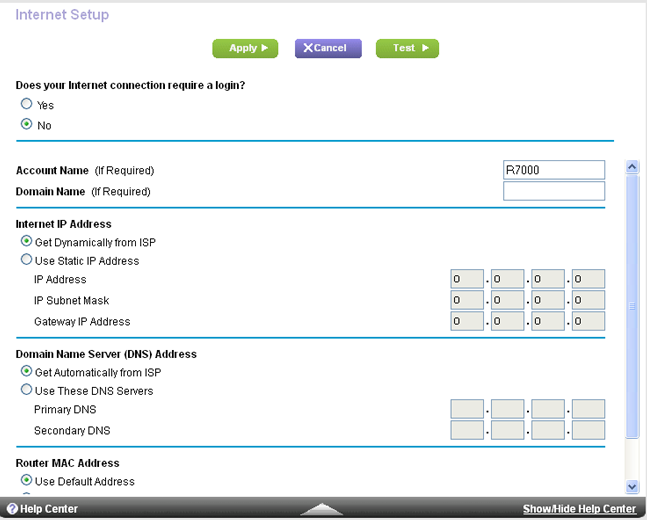
- Select Internet. If you are in the Advanced tab, select Setup > Internet Setup.
- For Does your Internet connection require a login?, select Yes.
- Set Internet Service Provider to PPPoE.
- Enter the AFTEL details in Login and Password. Leave Service Name blank and set Connection Mode to Always On.
- Select Apply.
Check the connection
Connected: The router shows Connected or Online and websites open.
Still connecting: Wait two minutes after saving before changing another setting.
Login failed: Re-enter the AFTEL username and password. Check for spaces before or after either entry.
Reset the router
Use a factory reset only if you cannot log in. It erases the internet, Wi-Fi and router login settings. You will need your AFTEL PPPoE details to set up the router again.
- Check that the router’s Power light is on.
- On the back, press and hold the recessed Reset or Restore Factory Settings button with a paper clip for 7 seconds.
- Release the button and wait for the router to restart.
- Reconnect using the Wi-Fi details on its label. Open routerlogin.net and sign in with username admin and password password.
After the reset, return to Enter AFTEL settings and enter your PPPoE username and password.
Checked against the NETGEAR Nighthawk RAX50 user manual, internet setup instructions, first-connection instructions and factory-reset instructions.